This term, I spent a lot of time learning about my development environment. One area that has saved me a lot of time are simple command line keyboard shortcuts.
Typos are annoying
As a Rails developer, I frequently type the following command:
$ bnudle exec rake db:migrateNotice the mistake in the word bundle. It is too long of a command to type again so we decide to fix it. The simplest fix is to tap the left arrow 23 times, delete the letters nu and then type the letters un. This works but it is a tedious process that can really slow down our work flow.
To speed this up, we can use some keyboard shortcuts for navigating through our commands. If we start with our cursor at the end of the line and then press Ctrl + a, our cursor will jump to the first character of the line. We can then move right twice and make the same modification as before in much less time.
Table of Speed
In addition to Ctrl - a there are a few more shortcuts that are handy to know. Neat fact: These are the same bindings used in Emacs for navigation.
| Ctrl + a | Move cursor to beginning of line |
| Ctrl + e | Move cursor to end of line |
| Ctrl + f | Move cursor forward 1 character |
| Ctrl + b | Move cursor backwards 1 character |
| Esc + f | Move cursor forward 1 word |
| Esc + b | Move cursor backwards 1 word |
| Ctrl + l | Clear the screen |
| Ctrl + h | Delete previous character |
| Ctrl + w | Delete previous word |
| Ctrl + k | Delete line after cursor |
| Ctrl + u | Delete line |
| Ctrl + r | Search through previously used commands |
Rebinding Caps Lock
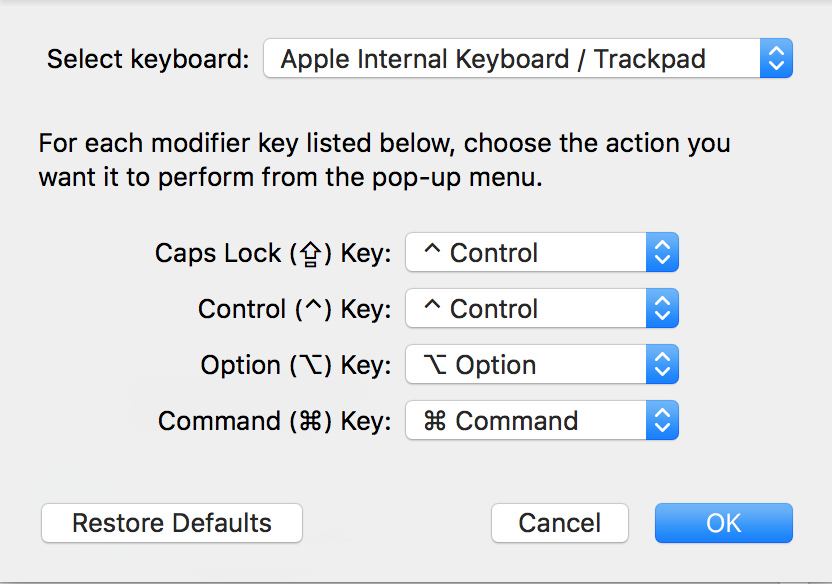
Notice how a lot of of these commands use the Ctrl key. To hit it, you need to shift your hand position in order to hit it with your left pinky finger. A nice way to avoid this on a Mac is to rebind your Caps Lock key to Ctrl.
Using Vi commands in your terminal
If you can’t get enough of vim and want to edit your text the same way, you can use this guide to edit your shell commands in vim mode.
Editting command in your favourite editor
If you are using zsh, you can use *